
Documentation
CodeSplash Homepage
Turn a new tab into a visual launcher—organize frequently used sites into focused folders and tabs, use recognizable bookmark cards, and tune the background and typography for fast scanning.
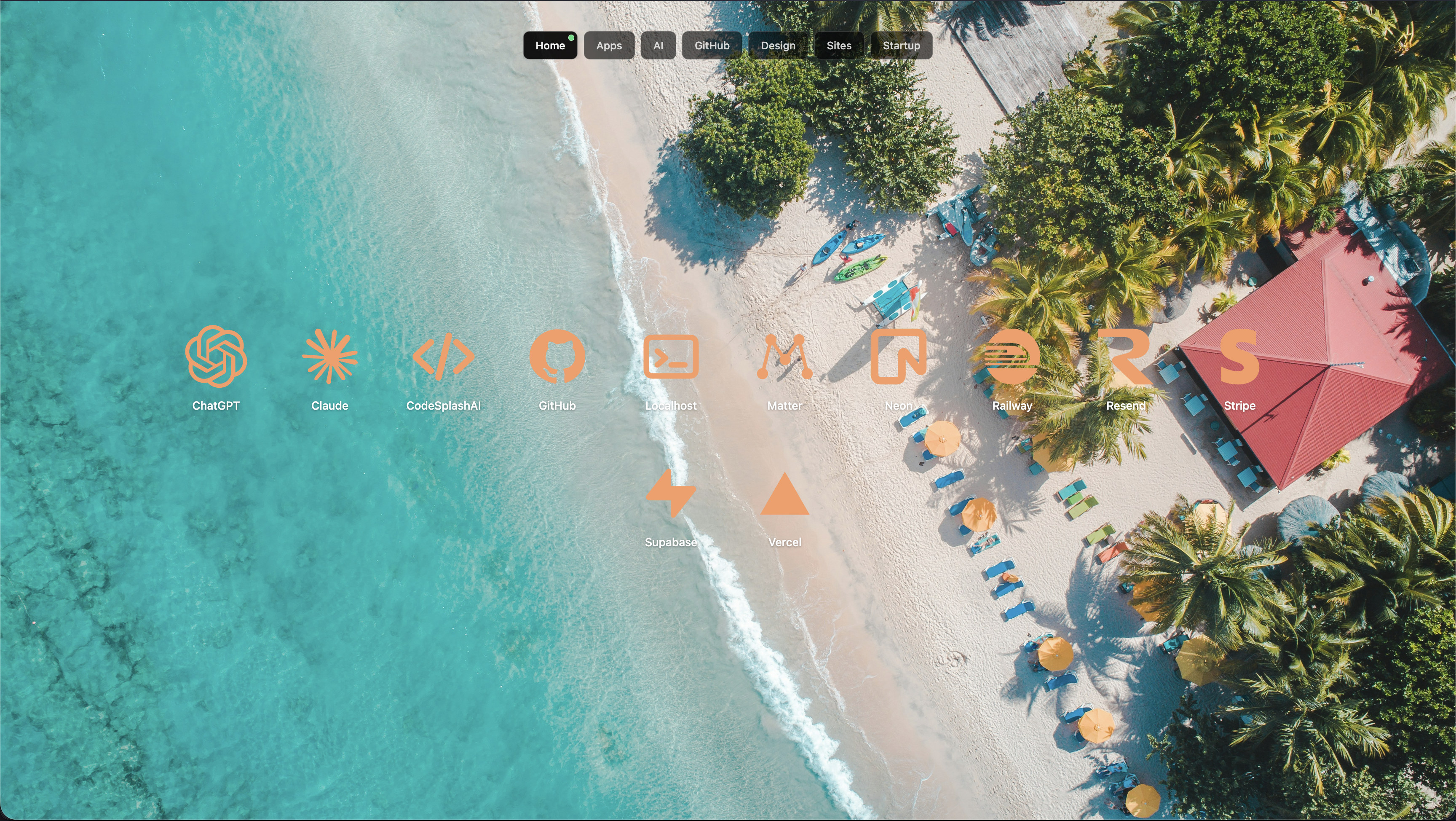
Install and start#
Make Homepage the new-tab surface, then build the first screen from the destinations you actually use.
Install the extension#
Add CodeSplash Homepage from its supported browser store. Confirm the browser’s request to replace the new-tab page.
Open a new tab#
Verify that Homepage loads consistently. Keep a browser bookmark to settings or extension management in case you need to disable or troubleshoot it.
Add the first destinations#
Start with a small set of daily sites. Importing every historical bookmark immediately usually produces a slower, less useful home screen.
Organize folders and tabs#
Use categories that correspond to real contexts rather than a complicated abstract taxonomy.
Create focused folders#
Group destinations by project, role, or activity—such as Build, Research, Operations, Personal, or Reading.
Use top tabs#
Give the most frequently changed contexts their own tab. Keep labels short enough to scan on a narrow browser window.
Reorder by frequency#
Place the most common destination where it requires the least attention. Review the arrangement after a week of real use.
Build recognizable bookmark cards#
Optimize for recognition before decoration.
Use clear labels#
Choose the name you naturally think of when looking for the destination. Remove unnecessary suffixes and inconsistent abbreviations.
Choose useful icons#
Use a site or product icon when it is distinctive. Avoid several unrelated cards sharing the same generic symbol.
Maintain destination URLs#
Update redirected, renamed, or project-specific links. Remove duplicates rather than creating several nearly identical cards.
Customize the interface#
Create a personal environment while preserving legibility and speed.
Set backgrounds intentionally#
Choose images or colors that leave enough contrast behind folders, labels, and controls. Different folder backgrounds can support recognition when used consistently.
Tune typography and color#
Adjust text size for the distance and display you use. Check light and dark images, active tabs, keyboard focus, and hover states.
Check common window sizes#
Test a maximized window, a split-screen window, and the narrowest size you use. Important bookmarks should remain reachable without horizontal overflow.
Back up and maintain#
Keep the launcher useful as destinations and habits change.
Review unused bookmarks#
Remove or relocate cards you have not used recently. A visual launcher becomes slower when every possible destination receives equal emphasis.
Preserve important configuration#
Use available export or browser-sync features before changing computers, reinstalling the browser, or clearing extension data.
Revisit the structure#
When a folder grows too large, split it around a real workflow. Merge folders that are too similar to distinguish at a glance.
Troubleshooting#
The new-tab page did not change#
Confirm the extension is enabled and check whether another extension controls the new-tab page. Browsers allow only one extension to own that surface at a time.
A bookmark opens the wrong page#
Edit the card and replace the destination with the current canonical URL.
A background reduces readability#
Increase surface opacity, choose a quieter image, or adjust the text and accent colors.
Frequently asked questions#
Does Homepage replace browser bookmarks?#
It is best used as a visual launcher for high-value destinations. Your browser’s full bookmark system can still hold archival links.
Can folders use different visual styles?#
Where supported, use differences consistently so they help identify a context rather than adding random variation.
Does it work in Chromium-based browsers?#
Support depends on the browser’s extension compatibility and new-tab policies. Chrome is the primary platform; verify other Chromium browsers through their extension flow.