CodeSplash Homepage 1.0.2: new Ocean & Heat themes
If you use CodeSplash Homepage as your browser start page, this update gives you a simpler way to control how it looks without changing how you organize bookmarks.
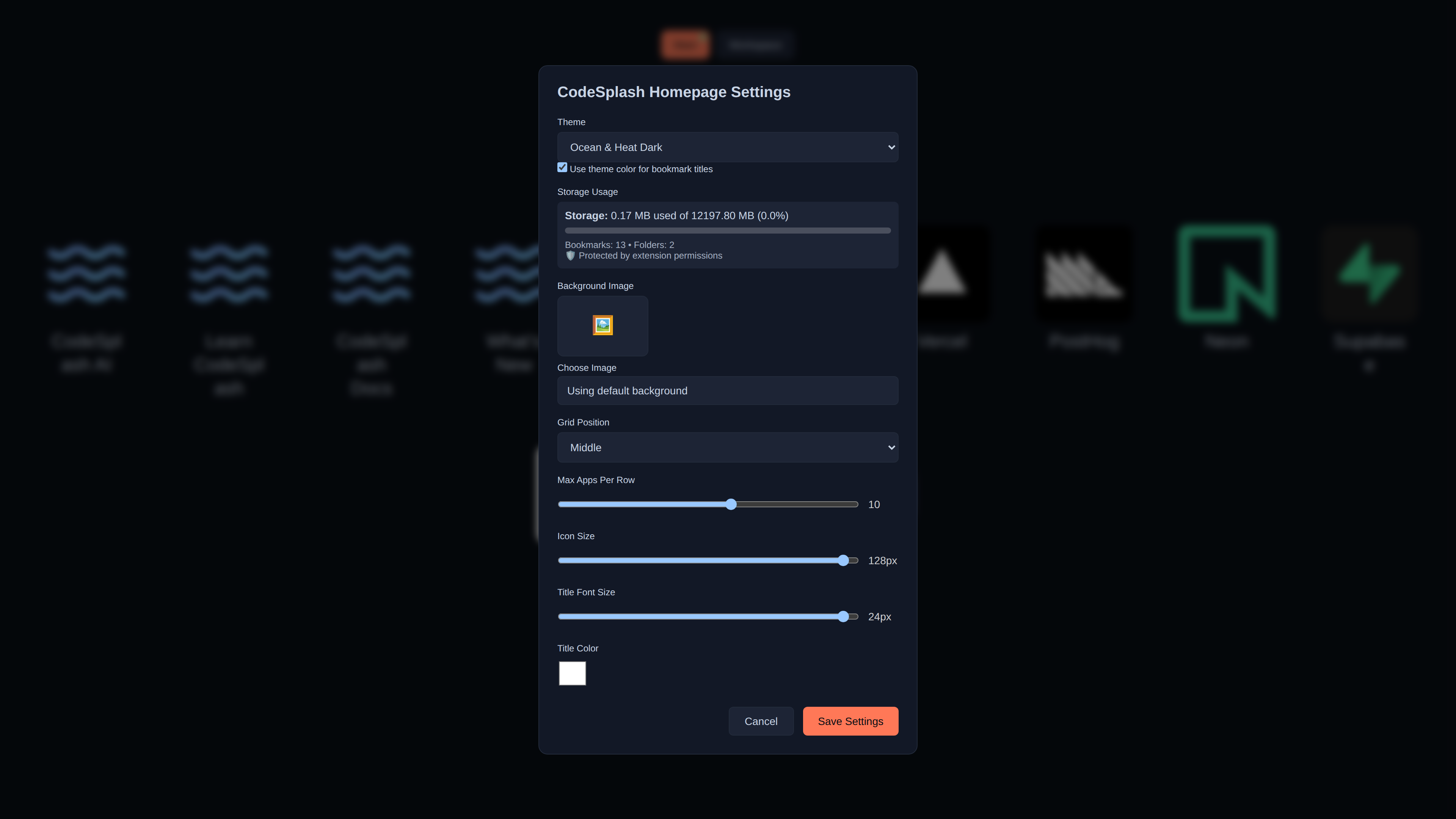
Version 1.0.2 adds two preset themes: Ocean & Heat Dark and Ocean & Heat Light. You can pick either one from homepage settings, or keep the Original look. The important part is that the choice now carries across the main new tab homepage and the toolbar popup, so the extension feels consistent instead of split between two different appearances.
Pick a theme from homepage settings
The main new feature is a new Theme selector in homepage settings. It gives you three options:
- Ocean & Heat Dark
- Ocean & Heat Light
- Original
That sounds small, but it changes a common workflow: open a new tab, adjust your homepage, then open the toolbar popup and see the same theme there too.
For new installs, Ocean & Heat Dark is the default. If you want the updated look, you do not need to edit anything manually. If you prefer the older appearance, switch the theme to Original.
Theme colors can now style bookmark titles
This release also adds a new setting: Use theme color for bookmark titles.
When that toggle is on, bookmark titles follow the active theme colors. That matters most if you want your grid to look more connected to the rest of the page instead of mixing themed panels with older title styling.
The setting lives next to the new Theme selector, so the workflow is straightforward:
- Open homepage settings.
- Choose Ocean & Heat Dark, Ocean & Heat Light, or Original.
- Turn Use theme color for bookmark titles on or off.
- Save your settings and open the toolbar popup to check the result there too.
The toolbar popup now follows your saved theme
Before this update, the homepage and popup could feel like separate surfaces. In 1.0.2, the popup reads your saved homepage theme and applies it there as well.
That means if you use the popup to access extension actions or quick stats, you are no longer jumping from one visual style to another. The homepage remains the main surface, but the popup now matches it more closely.
This is also why the release uses preset themes instead of one-off styling changes. The same theme definitions are shared across both surfaces, which makes the result more predictable.
Older installs keep the look they already had
The other important change is a compatibility fix for existing users.
Older installs that did not already have a saved theme setting stay on the legacy appearance by default. They are not switched to a new theme automatically.
That matters because appearance changes are personal on a page you open all day. If you already built a browsing setup around the previous look, upgrading does not force a visual reset. You can move to Ocean & Heat Dark or Ocean & Heat Light when you want to, from settings.
This release makes a clear distinction between two cases:
- New installs start with Ocean & Heat Dark.
- Existing installs without a saved theme keep the previous appearance.
That split keeps the updated default for new users while avoiding surprise changes for people who already rely on the current layout and styling.
What actually shipped in 1.0.2
Here is the full user-facing change list for this release:
- Added Ocean & Heat Dark and Ocean & Heat Light as preset themes for CodeSplash Homepage
- Added a Theme selector in homepage settings with Ocean & Heat Dark, Ocean & Heat Light, and Original
- Added Use theme color for bookmark titles
- Applied the saved homepage theme to the toolbar popup
- Preserved the legacy appearance for existing installs that had no saved theme yet
This update is mostly about polish and control, but it fixes a real friction point. Your new tab page is something you see constantly. Small visual inconsistencies stand out there fast. Giving theme control to the user, carrying that choice into the popup, and avoiding forced changes on older installs makes the extension easier to live with.
If you want to check it out, head to the CodeSplash downloads page and then open homepage settings to try Ocean & Heat Dark or Ocean & Heat Light.
Try the release and reply with feedback on which preset you want to keep as your daily start page.
Feature screenshots
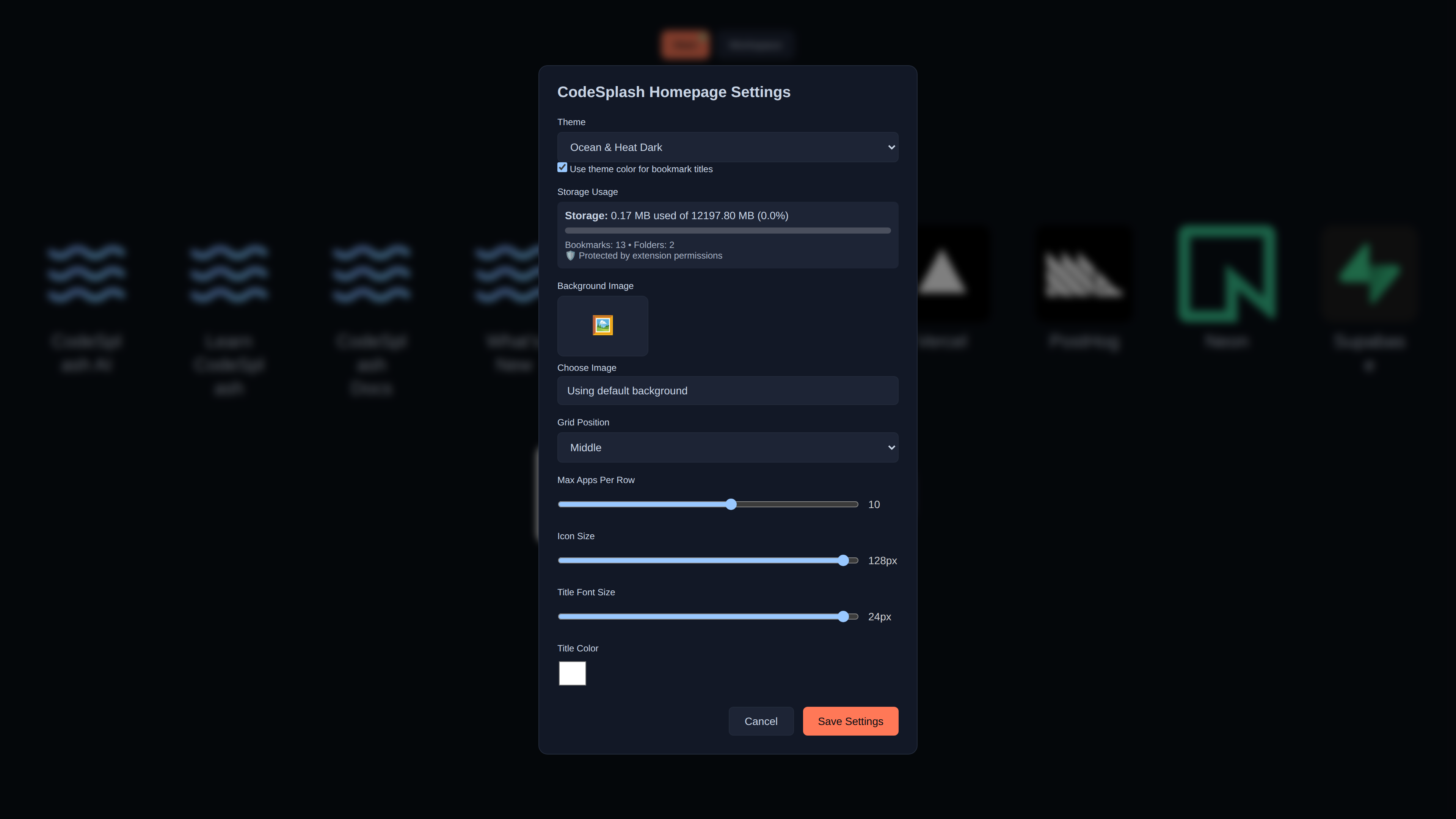
Adjust the layout, icon and title sizes, title color and background in Homepage Settings. · View original full-resolution image
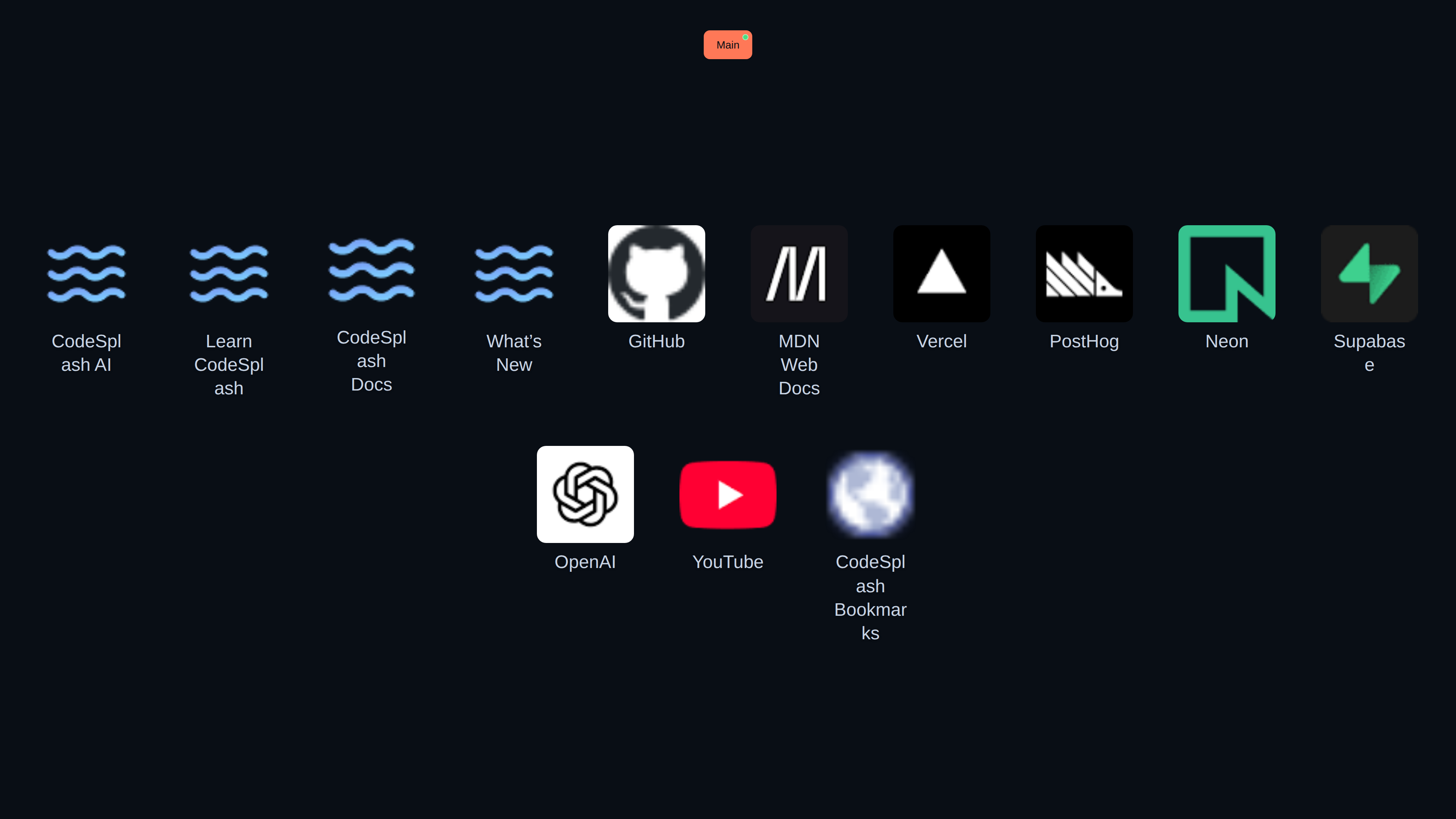
The saved bookmark joins the current folder and is ready to open. · View original full-resolution image