Documentation
CodeSplash Gym
Log workouts with previous sets in view, follow routines and programs, track food and habits, and connect Apple Health and Apple Watch. Everything stays on your device with no account.
Version 0.14.0 was submitted to the App Store on September 26, 2026 and is waiting for Apple's review. Your records are stored on your device. Apple Watch, Apple Health, and imports are optional.
Get started#
Open the app, tap Get started, choose your units and preferences, and continue to Start training. Importing history and connecting Apple Health are optional and can be done later from Settings. You do not need a CodeSplash account.
The app has five tabs: Today, Train, Nutrition, Stats, and Search.
Log a workout#
Start a session#
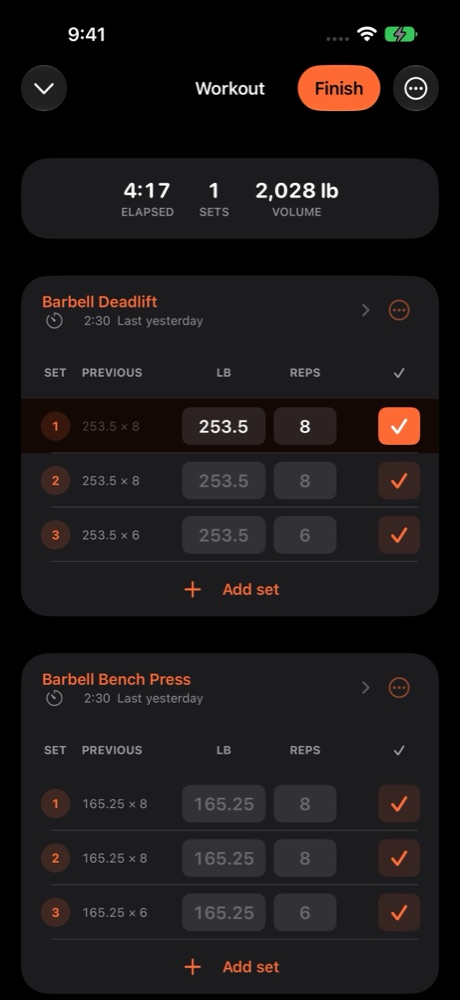
- On Today, tap Start workout for an empty session, or open Train and pick a routine.
- Add exercises from the library or create a custom exercise.
- Enter weight and reps for each set and tap the check to mark it complete.
- Tap Finish to save the session to your history.
Expected result: the workout appears in your history, records are re-evaluated, and the Workouts habit ring advances.
Use previous sets#
Each set shows what you lifted last time. Tap the placeholder to copy it, then adjust if needed. Warm-ups, supersets, and effort (RPE) can be added from the set menu.
Rest timers and Live Activities#
Every exercise has a rest time. When you complete a set the timer starts and appears as a Live Activity in the Dynamic Island and on the Lock Screen. Loud alarms are optional and can be enabled in Settings.
Resume an active workout#
Your active workout is saved as you go. If you leave the app or restart your phone, Today shows Resume workout with the session still running.
Plan with routines and programs#
Create a routine#
- Open Train and tap New routine.
- Add exercises, set target sets and reps, and order them.
- Save the routine and, optionally, assign it to a weekly schedule or rotating split.
Follow a built-in program#
Train includes 12 programs with progression rules, from beginner linear progression to intermediate splits. Pick one and the app schedules the next session and adjusts targets after each workout.
Plate and warm-up calculators#
Open the calculator from any set to see which plates load the bar for a target weight, or generate a warm-up ramp toward your first working set.
Track progress#
Exercise pages#
Search for any exercise to see its summary, history, charts, and records. The estimated one-rep max chart shows your trend across 1M, 3M, 6M, 1Y, and All ranges.
Stats#
The Stats tab shows weekly rings and streaks, a training heatmap, a muscle map, a monthly report, and your body weight trend with goal projection.
Personal records#
Records are detected as you log. A banner appears when you hit a new best, and the Records list on each exercise shows heaviest set, best volume, and rep-max entries.
Track nutrition and habits#
Log food#
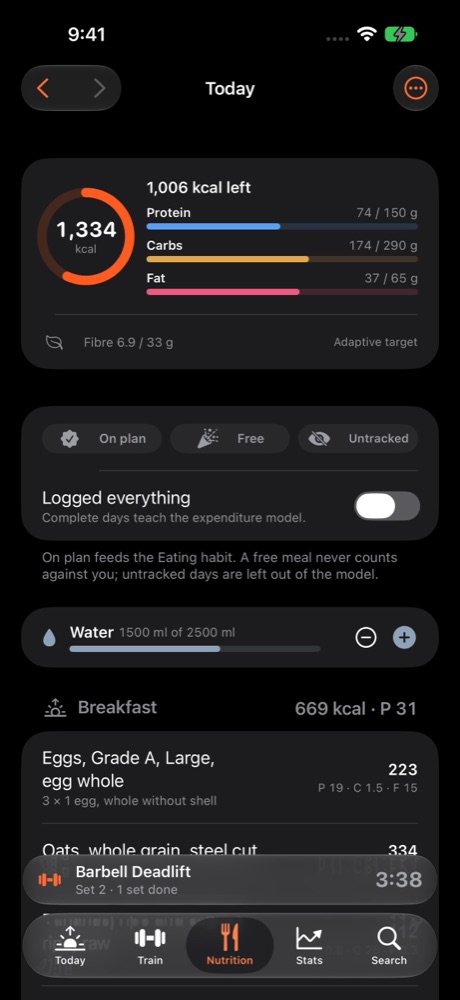
- Open Nutrition and tap a meal.
- Search the food catalogue, scan a barcode, or pick from recents and saved meals.
- Set the portion and save.
Barcode lookup uses Open Food Facts and needs an internet connection for products that are not already cached. You can also create your own foods.
Describe a meal#
Type a sentence such as "2 eggs, toast with butter and a banana". On devices with Apple Intelligence, the sentence is split into foods on the device and matched against the catalogue. Nutrient values always come from the catalogue, never from the model. Without Apple Intelligence, a built-in parser does the same job.
Adaptive target#
Mark days as On plan, Free, or Untracked. Complete, on-plan days teach the expenditure model, which adjusts your calorie target over time. Free meals never count against you.
Habits#
Workouts, Cardio, Eating, Weight, and Sleep habits fill in automatically from your data. Streaks, freezes, and widgets are on Today. You can also mark a habit manually.
Connect Apple Health and Apple Watch#
Apple Health#
In Settings, choose which Health data to read (workouts, sleep, heart rate, weight) and whether to write completed workouts, body measurements, or nutrition entries back to Apple Health. Permissions are controlled through Apple's Health settings.
Apple Watch#
The Watch app is a companion to the iPhone app. Keep both installed on a paired iPhone and Apple Watch and open the phone app once so routines and workout state are available on the wrist. From the Watch you can log sets, control rest timers, pick a routine, and see live heart rate and calories.
Import and export your history#
Import#
Settings has separate import screens for Fitbod workout CSV exports, Fitbit Takeout archives, and Garmin export files. Review the imported records before confirming. Re-importing the same file is safe; the app skips records it already has.
Export#
Use Settings, Your data, to export all sets as CSV or create a JSON backup. Keep your original import files as well.
Troubleshooting#
The Watch does not show my routines#
Open the iPhone app while the Watch app is open so the two can sync. Both devices need to be paired and unlocked.
A barcode is not found#
Enter the barcode digits manually, or create the food yourself. Lookups for uncached products need an internet connection.
Apple Health data is missing#
Check Health permissions on your iPhone under Privacy and Security, Health, CodeSplash Gym. Charts that depend on Health data need source records before they can show trends.
I want to clear my data#
Settings, Delete all workouts removes workouts, sets, and records. Deleting the app removes everything it stored on the device. Copies written to Apple Health or exported as files stay under your control.
Frequently asked questions#
Do I need an account?#
No. All records are stored locally on your device. Core workout logging works offline.
Is my data synced between iPhone and iPad?#
Not currently. Records are local to each installation. Use the JSON export to move history between devices.
Does the app give medical advice?#
No. Strength, expenditure, and readiness estimates are for fitness tracking and general wellness only.
Where do I get help?#
Email support@codesplash.ai. The support page is at https://codesplash-ai.github.io/codesplash-gym/gym/support/ and the privacy policy is at https://codesplash-ai.github.io/codesplash-gym/gym/privacy/.